Style & Branding
The chat widget is fully customizable. Settings live in two places:
- Widget → Style — colors, fonts, avatar, language, message bubbles, widget size, fixed links, and footer.
- Widget → Content — bot name, greeting, and branding text.
Every change is shown instantly in the Live Preview on the right, and most settings auto-save as you edit.
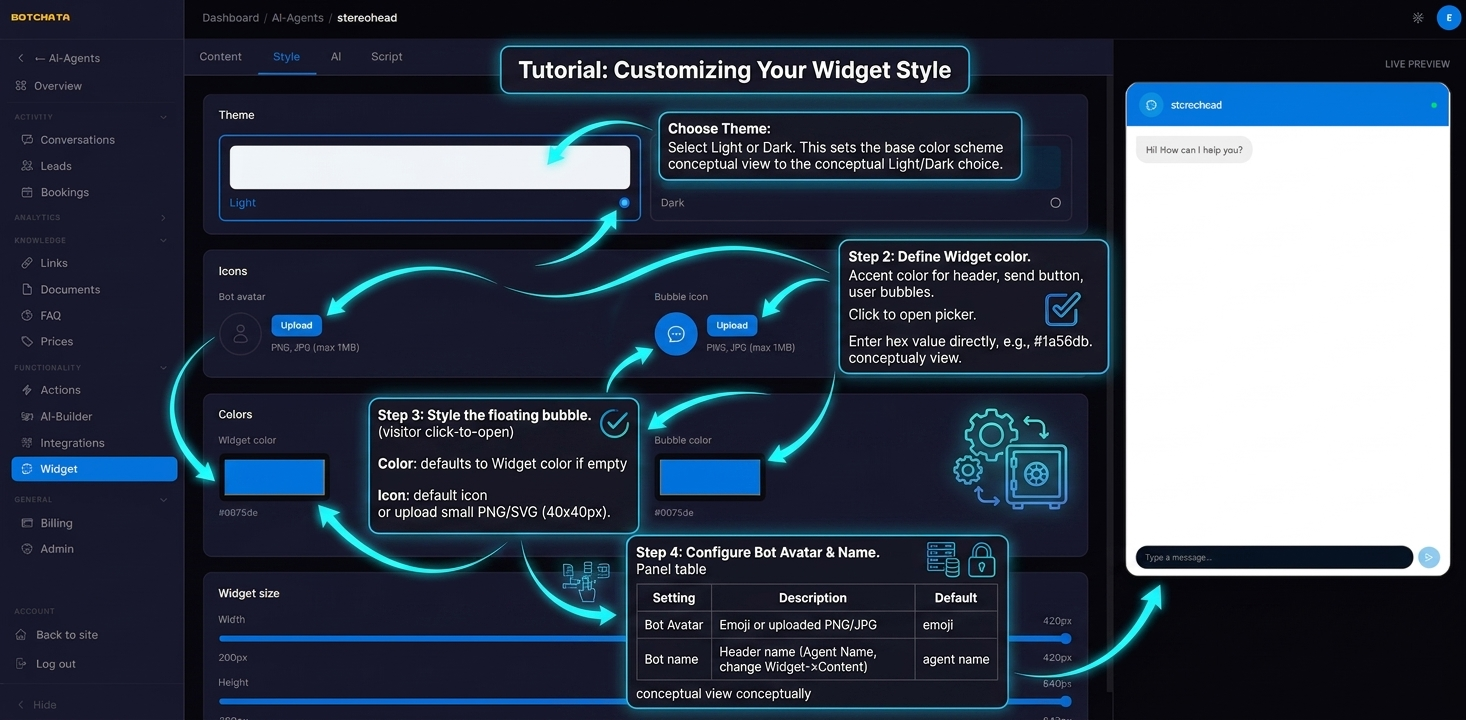
Theme
Choose Light or Dark. This sets the base color scheme for the entire widget — background, text, borders, and input areas.
Choosing Dark doesn't affect your website's own theme — only the widget.
The header keeps your brand color in both themes, and so does the launcher bubble. The theme is your choice, not your visitor's: the widget sits on your site, and a visitor's system dark mode says nothing about the page it was pasted into.
Widget color
The primary accent color used for the header bar, send button, and user message bubbles. Click the color swatch to open the picker, or type a hex value directly — for example #1a56db.
Launcher bubble color and icon
The floating button that visitors click to open the chat.
- Color — defaults to the widget color if not set separately.
- Icon — choose the default chat bubble icon, a custom emoji, or upload a small PNG/SVG image (recommended: 40×40px).
Bot avatar
Shown next to every bot message. Options:
- Emoji — pick any emoji character. Simple and readable at small sizes.
- Image — upload a PNG or JPG. Round-cropped to a circle. Recommended size: 80×80px.
Chat header
In the Style → Chat Header block you can set:
- Tagline — small text under the bot name (e.g. "AI assistant" or the bot's role).
- Name color and Tagline color — override the header text colors.
- Reset tooltip — the label shown on the "New conversation" reset button.
The bot name itself and the greeting message (the first message visitors see) are set in Widget → Content. Keep the greeting friendly and action-oriented:
Hi! 👋 I'm your support assistant. Ask me anything about our products or services.
Message bubbles
In the Style → Messages block:
- Input placeholder — hint text in the message box (default "Type a message…").
- Font size — base font size for the conversation.
- User bubble — background and text color of the visitor's messages (enable Override to set a custom background).
- Bot bubble — background and text color of the bot's replies.
Widget size
In Style → Widget size, drag the sliders to set the chat window dimensions:
- Width — 240 to 520 px
- Height — 360 to 800 px
The size you set here applies to the embedded widget on your site, not just the dashboard preview. On mobile the widget always expands to fill the screen, regardless of these values.
Widget language
By default the widget auto-detects the visitor's language from their browser and localizes all built-in labels (buttons, form fields, placeholders) accordingly. To force a specific language, pick it from the Language dropdown on the Style tab (English, Ukrainian, Polish, German, Spanish, French, Italian).
This controls the widget's interface labels only. The bot always replies in the language the visitor writes in.
Fixed links
In Style → Fixed links you can pin up to 6 links that appear with the bot's answers — handy for a contact page, pricing, or a "Book a demo" call-to-action.
For each link set a Label and a URL (http/https only). You can also control:
- Background / text color / size — match the links to your brand.
- Placement — Under each message (shown beneath every bot answer) or Bottom of chat (a persistent bar above the input).
Custom footer HTML
In Style → Chat Footer you can add your own HTML below the conversation — a disclaimer, a privacy-policy link, or office hours.
For security, only these tags are allowed: <a>, <span>, <strong>, <em>, <b>, <i>, <br>. Links automatically open in a new tab.
The custom footer is available on the Business plan and above.
Branding
By default a small "Powered by BotChata" link appears at the bottom of the widget.
To replace it with your own brand, go to Widget → Content:
- Custom brand name — your company name.
- Custom brand URL — link the brand text to your own site.
To hide the branding entirely, your account needs a plan that includes white-label (Enterprise/Agency). See Plans & Billing.
Voice input
When a visitor's browser supports speech recognition (Chrome, Edge, Safari), a microphone icon appears in the message box automatically — no setup required. The visitor can dictate a message, review the transcript, and edit it before sending. The mic is silently hidden on browsers that don't support it (e.g. Firefox).
Action menu
Everything the bot can do lives in one menu: booking, your contact link, talk to a human, and any custom forms or builder widgets you expose. Add an item by enabling "Show in widget menu" on a custom form (Custom Forms) or a builder widget (Widget Builder). Booking, the contact link and handoff appear on their own once enabled, and the menu is hidden when there is nothing to show.
For the contact link, set Widget → Content → Contact URL to mailto:support@yoursite.com, tel:+1234567890 or a page on your site.
Style → Action menu decides where that menu sits. All three layouts hold the same items:
- Behind a + in the field (default) — a + inside the message box opens the list, and nothing sits under the field.
- A Menu button under the field — a small Menu chip below the box opens the same list.
- Buttons under the field — the actions themselves, as a row of buttons: one tap instead of two. Only with 1–3 actions; above that the widget falls back to the + layout on its own, and switches back when you have few enough again.