
Widget Builder
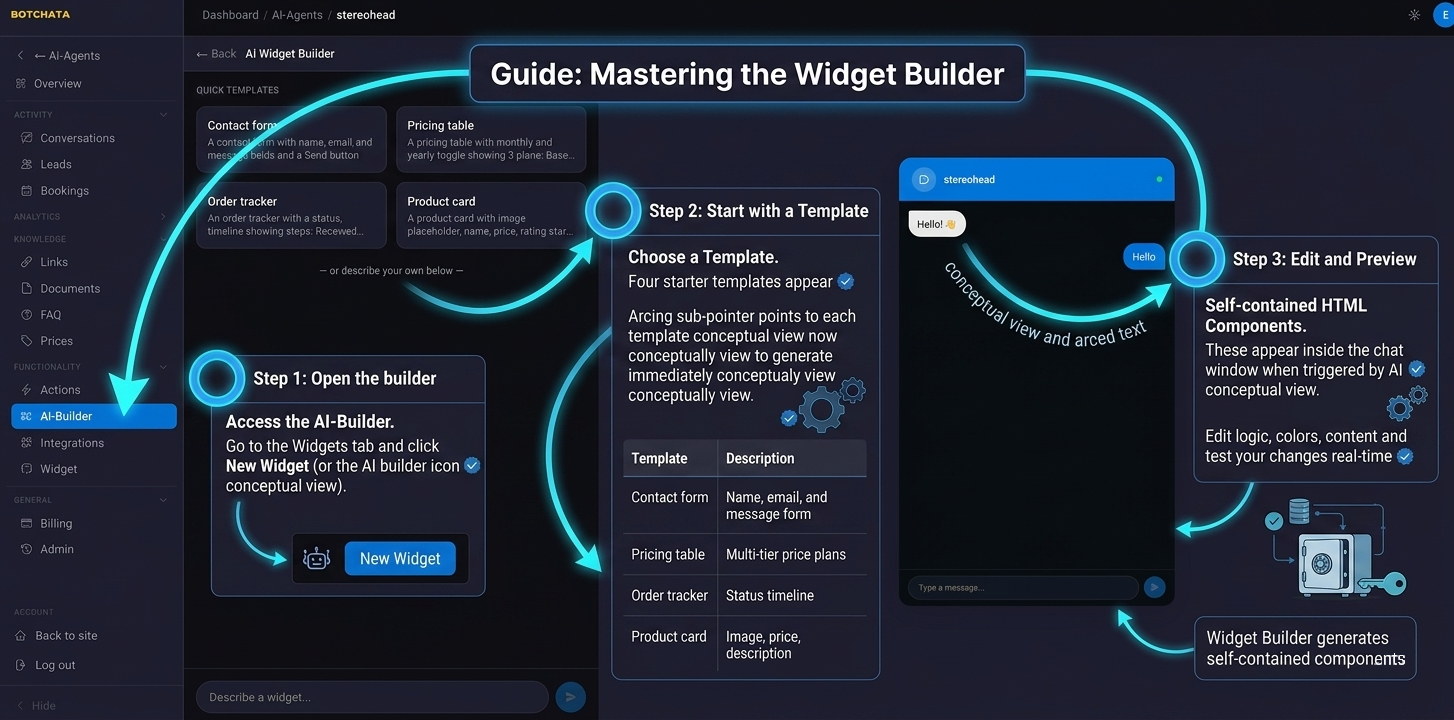
The Widget Builder generates self-contained HTML components — contact forms, feedback forms, pricing tables — that appear directly inside the chat window when triggered by the AI or opened from the widget menu.
A builder widget collects data (saved to your Submissions tab). It does not call shipping carriers or product catalogs — those come from Integrations, which return results as chat text or a product carousel.
Open the builder
Go to the Actions tab and switch to the AI-Builder sub-tab (also reachable from the AI-Builder quick link in the sidebar). Click New Widget.
Quick templates
Two starter templates appear at the top:
| Template | What it generates |
|---|---|
| Contact form | Name, email, message form with a Send button |
| Pricing table | A three-tier pricing display with a monthly/yearly toggle |
Click a template to generate it immediately, or skip them and describe your own below.
Custom prompt
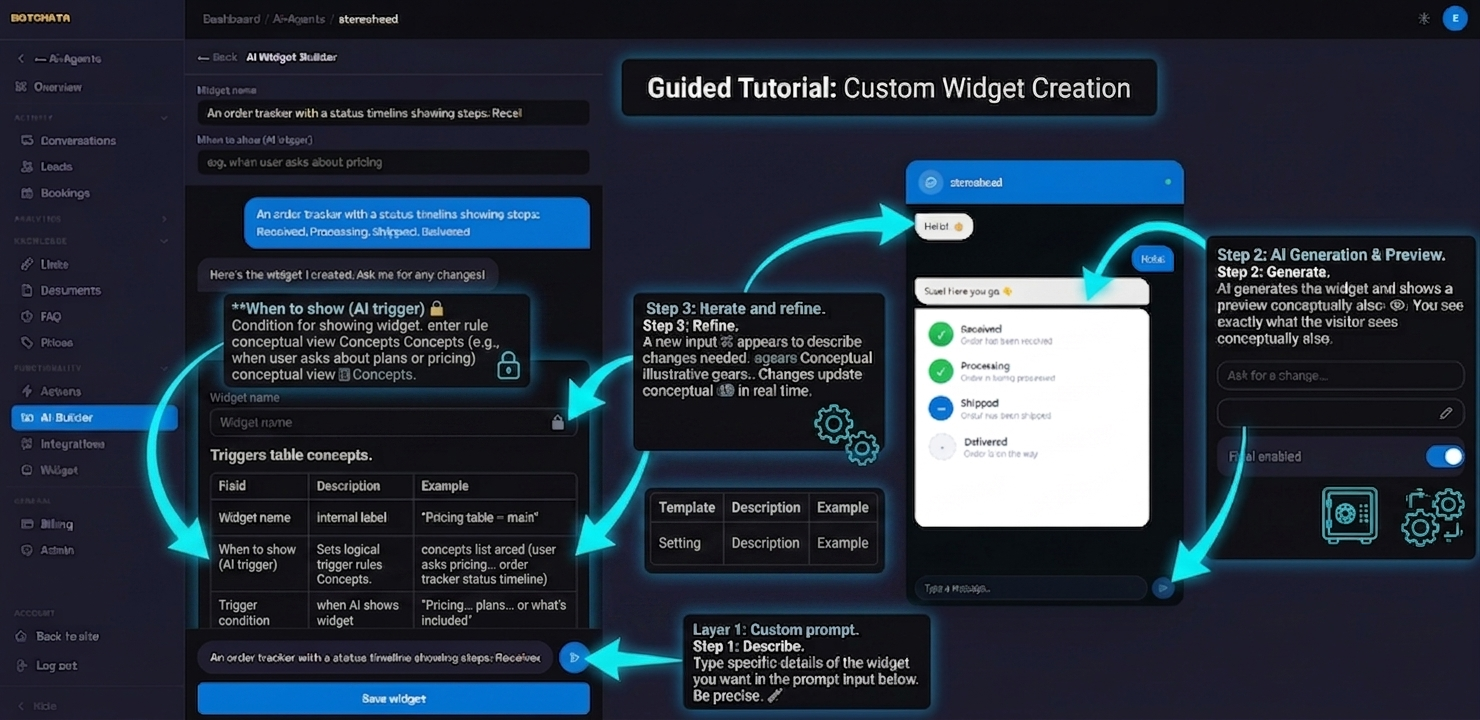
Type a description of the widget you want in the prompt input. Be as specific as you like:
A feedback form with a 1-5 star rating, a text comment field, and a "Submit feedback" button.
Style it with a dark background and orange accents.
The AI generates the widget and shows a live preview inside a mock chat window, so you can see exactly how it will look to a visitor.
Iterate and refine
After generation, the "Ask for a change…" input appears below the preview. Describe what you want different:
Make the buttons rounded and increase the font size on the prices.
Add a note below the pricing table: "All prices exclude VAT."
Each iteration is a fresh AI generation and updates the preview.
Save the widget
Once satisfied, enter:
- Widget name — internal label (e.g. "Pricing table – main").
- Trigger condition — the plain-language condition for when the AI shows this widget.
- Show in widget menu — optionally also list this widget in the action menu, so visitors can open it on demand (independent of AI triggering).
Show the pricing table when the visitor asks about plans, pricing, or what's included.
A widget can be AI-triggered, menu-listed, both, or neither — but it must be enabled to render. Click Save; the widget appears in the Actions overview as a card with a preview thumbnail.
Manage widgets
From the Actions overview you can:
- Toggle a widget on/off.
- Edit — reopens the builder with the existing HTML for further refinement.
- Delete — permanently removes the widget.
How widgets appear in chat
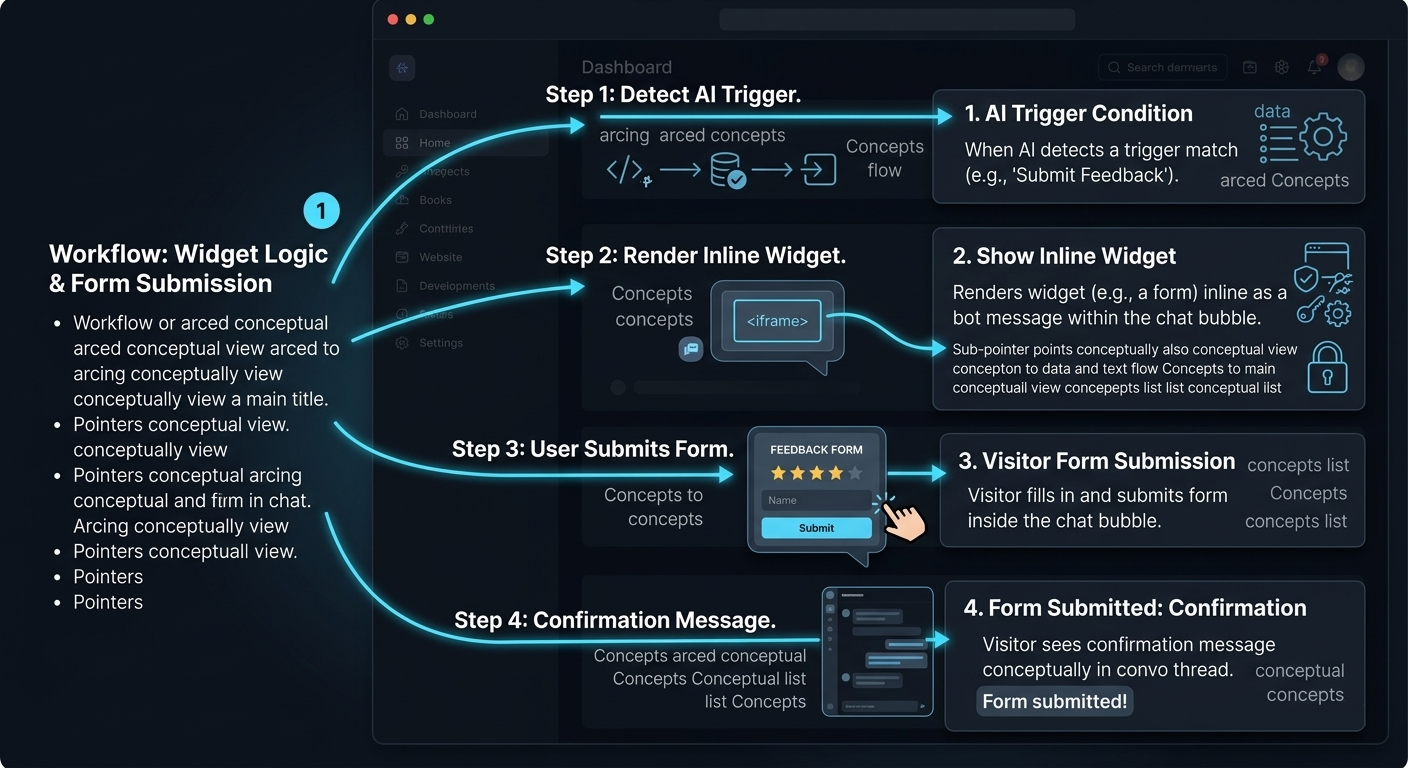
When the AI detects a trigger match (or the visitor opens the widget from the + menu), it renders inline as a bot message. The widget runs in a sandboxed <iframe> so it can't affect your page, and resizes to fit its content.
If the widget has a form, the visitor submits it from within the chat. After submitting, the form is replaced with a neutral "Submitted" confirmation, and the data is saved to your Submissions tab.
Tips
- Keep widgets focused on a single action — a pricing table that also has a contact form and a product carousel is overwhelming.
- Make trigger conditions specific to avoid the widget appearing in unrelated conversations.
- Generated widgets use inline CSS and vanilla JavaScript only — no external libraries or network requests.
- The render endpoint forces the widget to full width, so it fits whatever widget size you've set. If a layout still looks off, prompt: "Make the wrapper width:100% so it fills the container."
- A generated widget is a sandboxed document of its own, so the widget's Theme cannot reach inside it — it will render as a light card even in a dark chat. Just ask for what you want: "Style it for a dark chat — dark background, light text." The builder handles that well.