
Custom API Actions
Custom API Actions let your agent call an external HTTP endpoint during a conversation and use the response to answer the visitor. Use this to look up order status, check inventory, fetch account details, or query any internal API.
Create an action
Go to Capabilities → Custom API Actions and click Add Action.
General settings
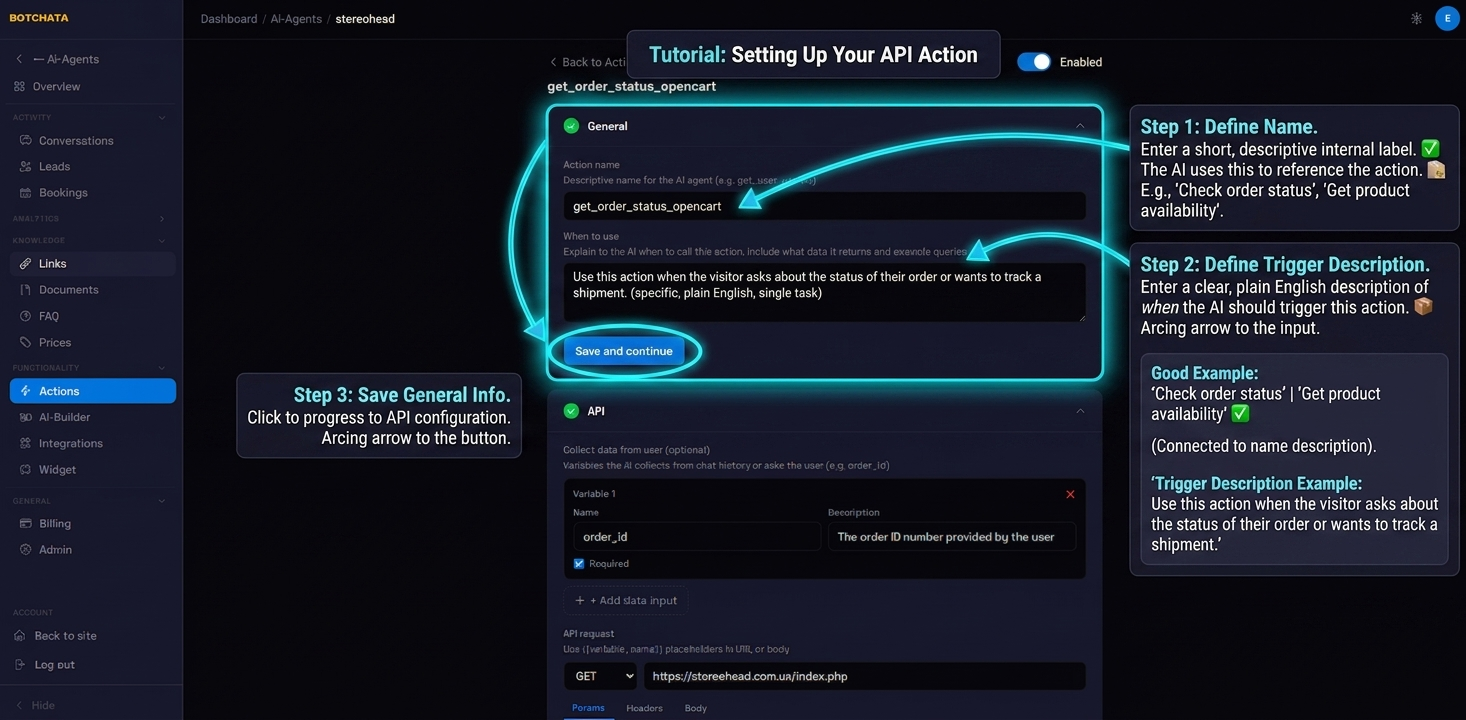
- Name — what the AI calls this action internally. Keep it short and descriptive:
Check order status,Get product availability. - When to use — plain English description of when the AI should trigger this action.
Use this action when the visitor asks about the status of their order or wants to track a shipment.
Configure the API call
Method and URL
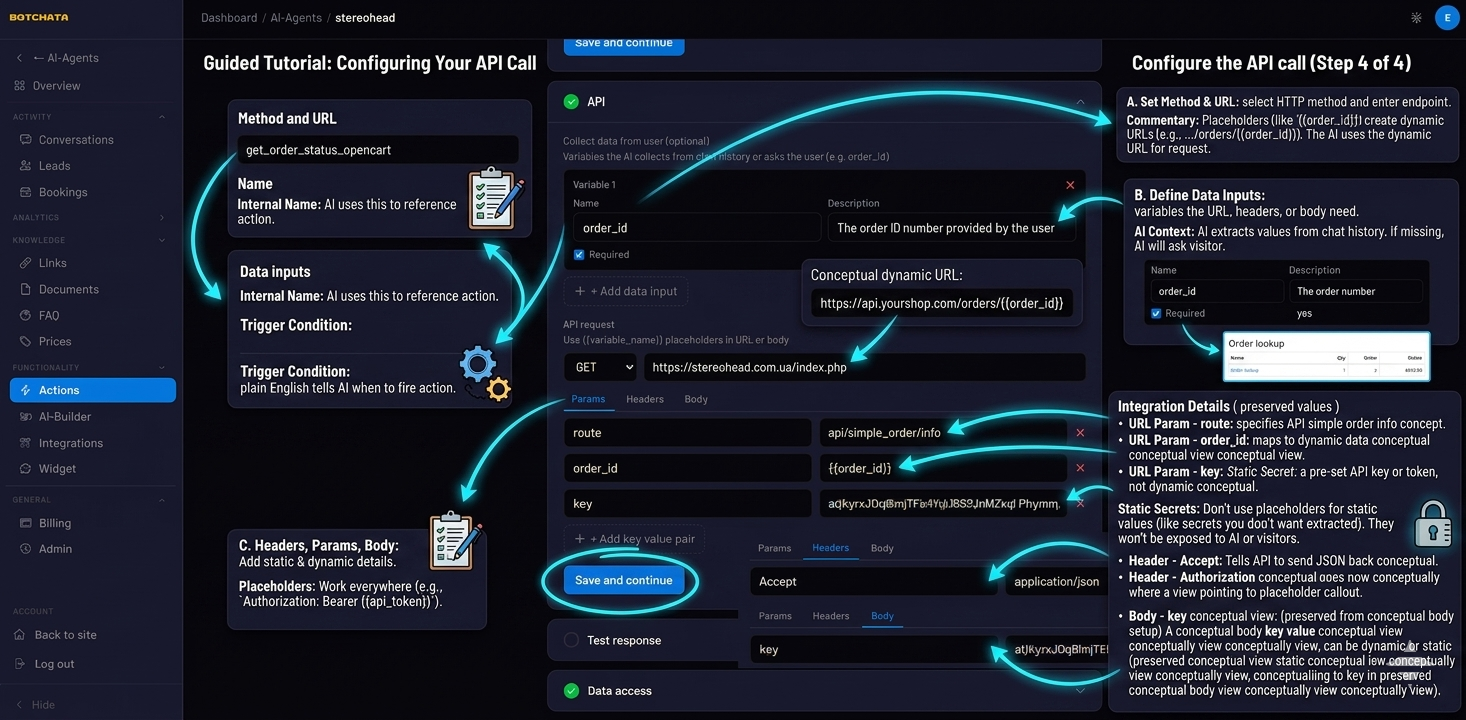
Select the HTTP method (GET, POST, PUT, PATCH, DELETE) and enter the endpoint URL. Use {{placeholders}} for dynamic values:
https://api.yourshop.com/orders/{{order_id}}
Data inputs
Define the variables your URL, headers, or body need. For each input:
| Setting | Description |
|---|---|
| Name | Variable name used in {{placeholders}} |
| Description | Tells the AI what to ask the visitor for |
| Required | Whether the AI must collect this before calling the API |
Example for order lookup:
- Name:
order_id· Description:The order number the visitor provided· Required: yes
The AI extracts values from the conversation context automatically. If a required value is missing, the AI asks the visitor for it before making the call.
Headers, Params, Body
Use the tabs to add authorization headers, query parameters, or a request body. Placeholders work everywhere:
Authorization: Bearer {{api_token}}
For static secrets (like API tokens) that you don't want extracted from chat, enter them directly as values without a placeholder — they won't be exposed to the AI or visitors.
Test the action
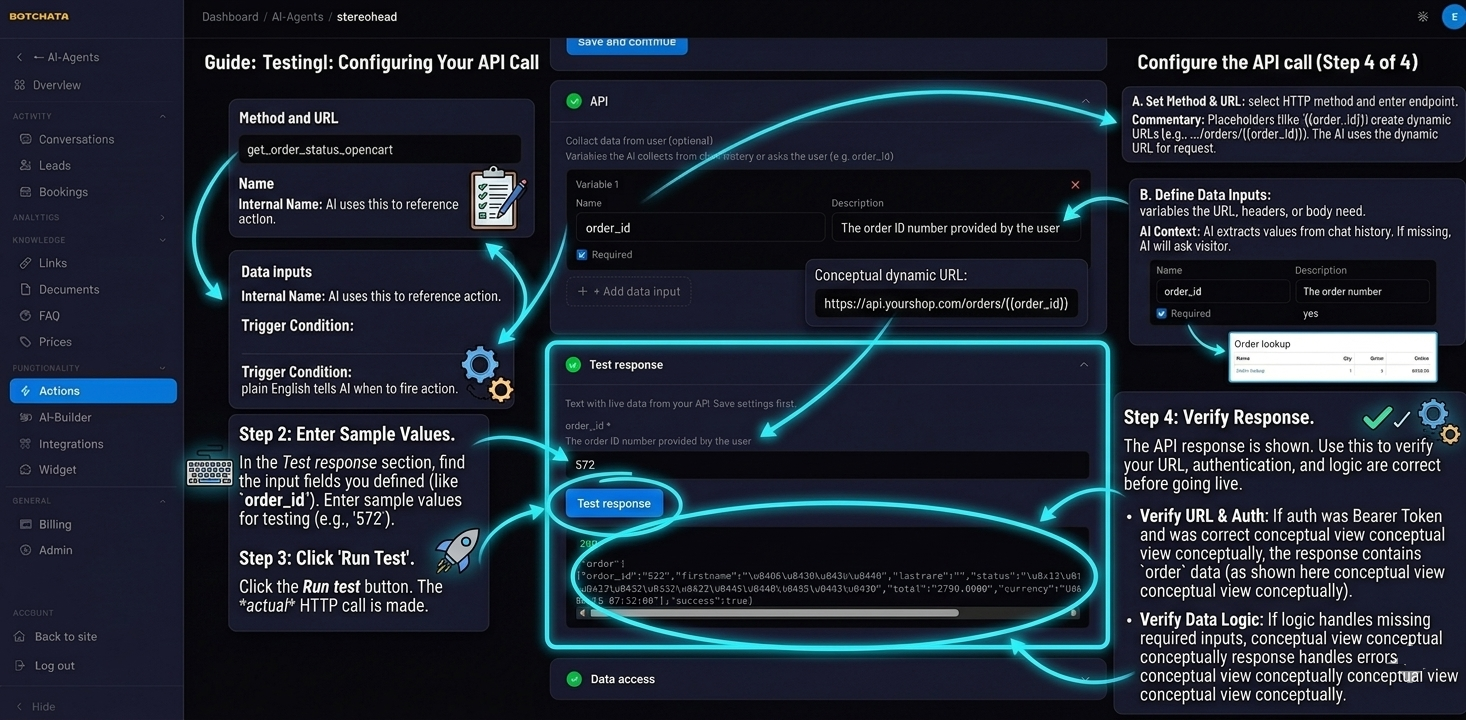
In the Test response section, enter sample values for your inputs and click Run test. The actual HTTP call is made and the response is shown. Use this to verify your URL and auth are correct before going live.
Data access
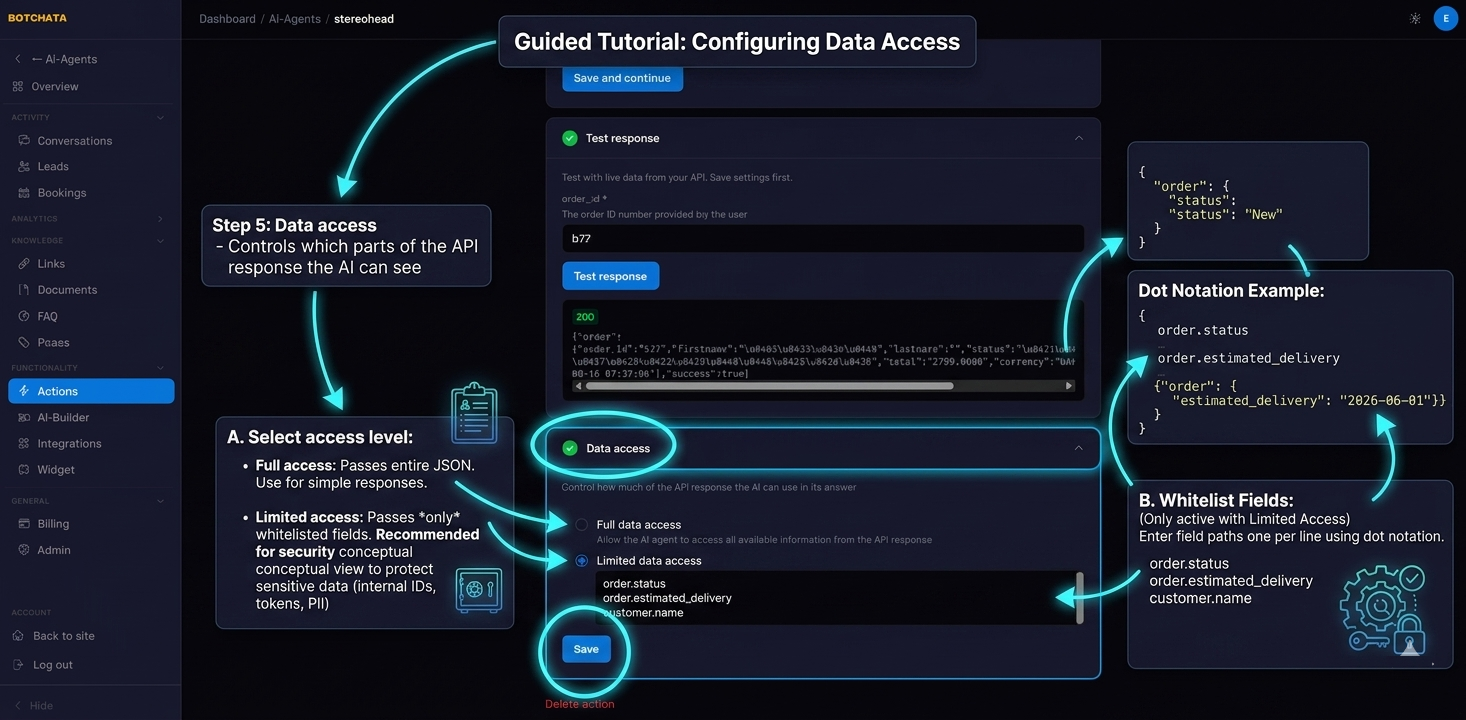
Controls which parts of the API response the AI can see:
- Full — the entire JSON response is passed to the AI. Use for simple responses where all fields are needed.
- Limited — only the fields you whitelist are passed to the AI. Use this to protect sensitive data (internal IDs, tokens, PII) from being included in AI answers.
Enter field paths one per line using dot notation:
order.status
order.estimated_delivery
customer.name
Tips
- Keep responses concise — the AI summarizes the response when answering, so a focused response gives better results than a 200-field object.
- Use Limited data access for any API that returns sensitive fields alongside the ones you need.
- If your API requires OAuth, use a long-lived service token rather than a user token — the action runs on BotChata's server, not the visitor's browser.
- The
{{placeholder}}syntax works in: URL path, query params, headers, and request body.