
Human Handoff (Telegram)
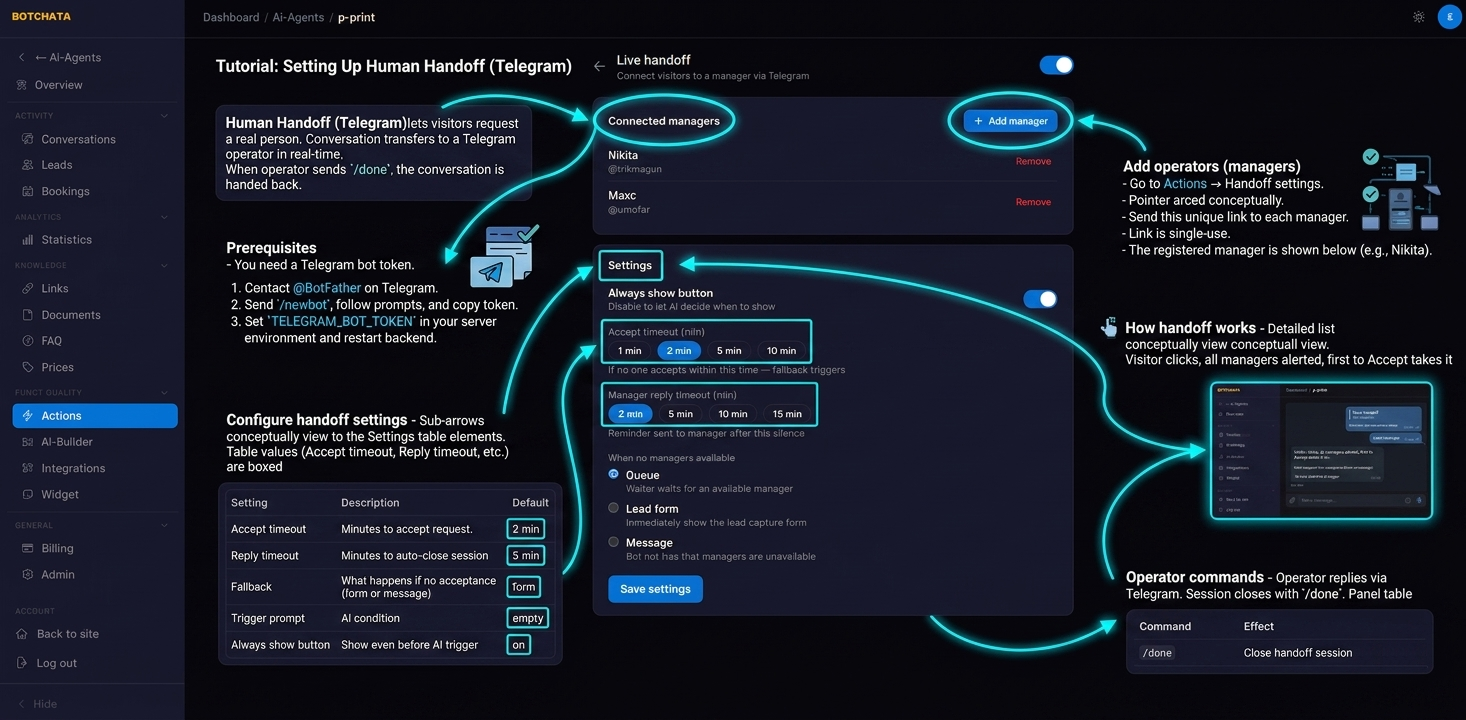
Human Handoff lets a visitor reach a real person during a chat. The conversation is transferred to a Telegram operator in real time, and handed back when the operator finishes.
Prerequisites
You need a Telegram bot token. Create one via @BotFather:
- Open Telegram and start a chat with
@BotFather. - Send
/newbot, follow the prompts, and copy the token it gives you. - Set
TELEGRAM_BOT_TOKEN(andTELEGRAM_WEBHOOK_SECRET) in your server environment and restart the backend. Contact your administrator if you're on the hosted plan.
Add operators (managers)
Go to Capabilities → Handoff and open the Telegram managers section. Click Generate connect link and send it to each person who will handle handoffs. When they open it in Telegram and tap Start, they're registered as an active manager.
Each link is single-use — generate a new one for each manager.
How handoff works
- The visitor opens the widget's action menu and picks Talk to a human (or the AI reveals that entry when your trigger condition fires).
- If a pre-handoff form is configured, the visitor fills it in first.
- BotChata alerts all active managers on Telegram with a conversation summary and Accept / Reject buttons.
- The first manager to tap Accept takes the conversation; the other managers' buttons are removed automatically.
- The visitor sees "Connected to [Manager name]". Messages then flow in real time — the manager replies in Telegram, the visitor sees it in the chat bubble.
- To end it, the manager presses ✅ Завершити розмову on the confirmation message (or sends
/done). The visitor sees "Session ended" and the bot takes the conversation back.
A forgotten session ends on its own after 30 minutes without a message. Counted from the last message in either direction, so a manager who is still thinking is never cut off. Without it, a manager who simply closed Telegram would have left the bot silent in that conversation for good.
The bot does not post an "I'll connect you" message — when handoff fires, the widget shows a short instruction and opens the menu on that entry (or shows the pre-form). This is intentional.
Trigger: always visible vs AI-triggered
- Always show (default) — the entry is in the menu from the start.
- AI-triggered — turn off "always visible" and set a Trigger prompt. The entry stays out of the menu until the AI decides the visitor needs a human, e.g.:
Reveal handoff when the visitor is frustrated, asks for a human, or has a complaint the bot can't resolve.
Pre-handoff form
You can collect details before a manager is notified. In the handoff settings, set Collect before handoff to:
- Custom form — pick one of your custom forms.
- Builder widget — pick an enabled builder form.
The answers are forwarded into the manager's Telegram alert, so they have context before they accept. The form is shown only once per session.
Accept timeout & fallback
| Setting | Description | Default |
|---|---|---|
| Accept timeout | Minutes a manager has to accept before the request expires | 2 min |
| Reply timeout | Minutes after the last message before the session auto-closes | 5 min |
| Fallback | What happens if no manager accepts: queue, form (lead capture), or message | form |
With queue, the visitor sees their position and keeps waiting. With form, they're shown the lead form so they at least leave contact details. With message, they see an "unavailable" notice.
Manager working hours
Turn on Working hours to define when managers are available (a weekly schedule + timezone). Outside those hours the widget shows the next available window — "Nearest manager working hours — Mon 09:00–18:00" — and no manager is notified. With working hours off, handoff is available 24/7.
Operator commands
| Command | Effect |
|---|---|
/done | Close the handoff session |
Normal text messages are forwarded to the visitor. There are no other special commands.
Tips
- Add at least 2 managers so a handoff isn't missed when one is away.
- An aggressive Accept timeout (2 min) is fine for a dedicated team; raise it to 5–10 min for busy teams.
- Set Fallback = form so visitors who don't reach a human still leave their contact details.
- Use a pre-handoff form to route the request — e.g. a "what is this about?" dropdown — so managers triage faster.